← All features
Desktop overlay new · PC
Kills on your route, danger nearby and the whole map, in a separate window on top of the EVE client. No alt-tab, no second screen, and the game itself is not touched.
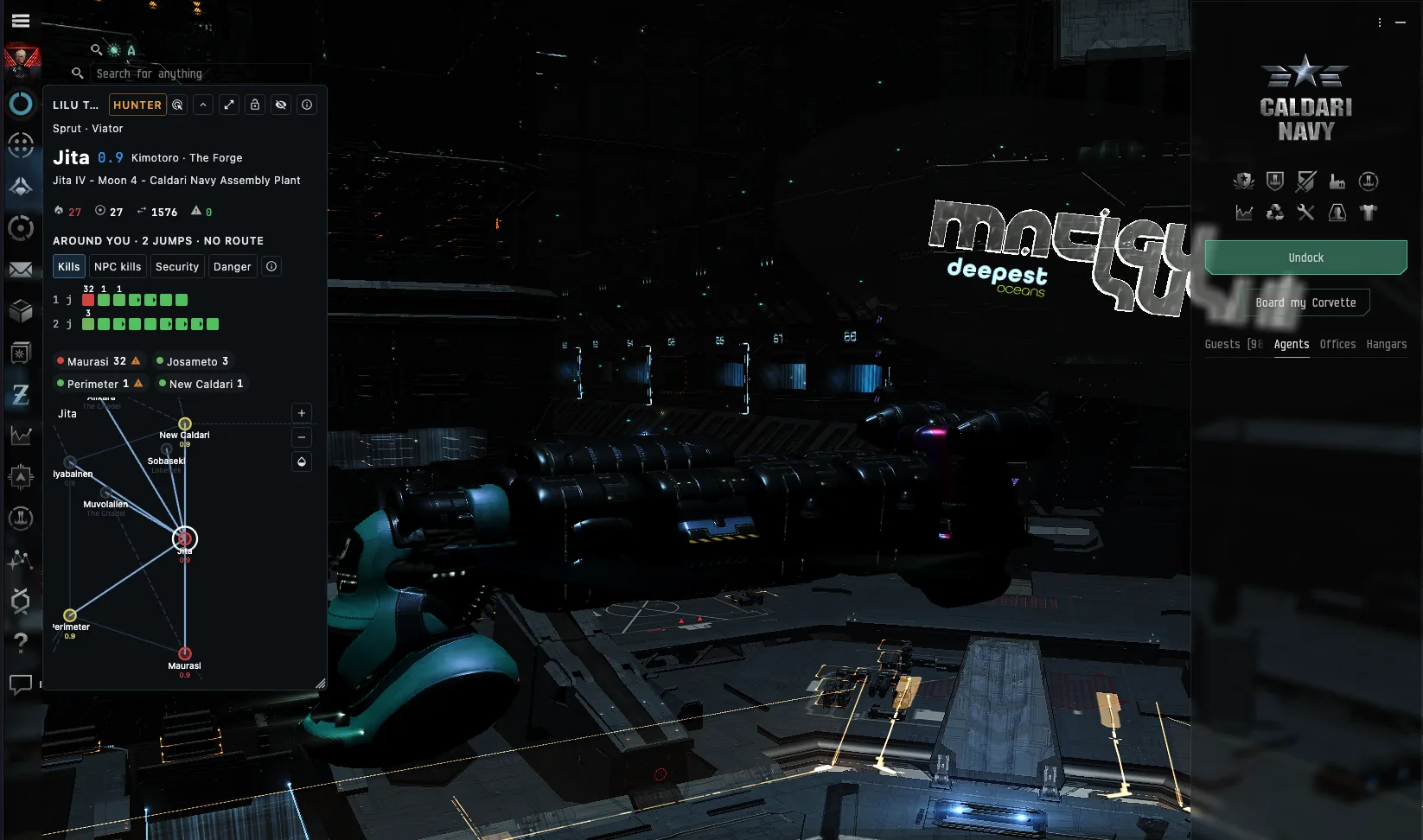
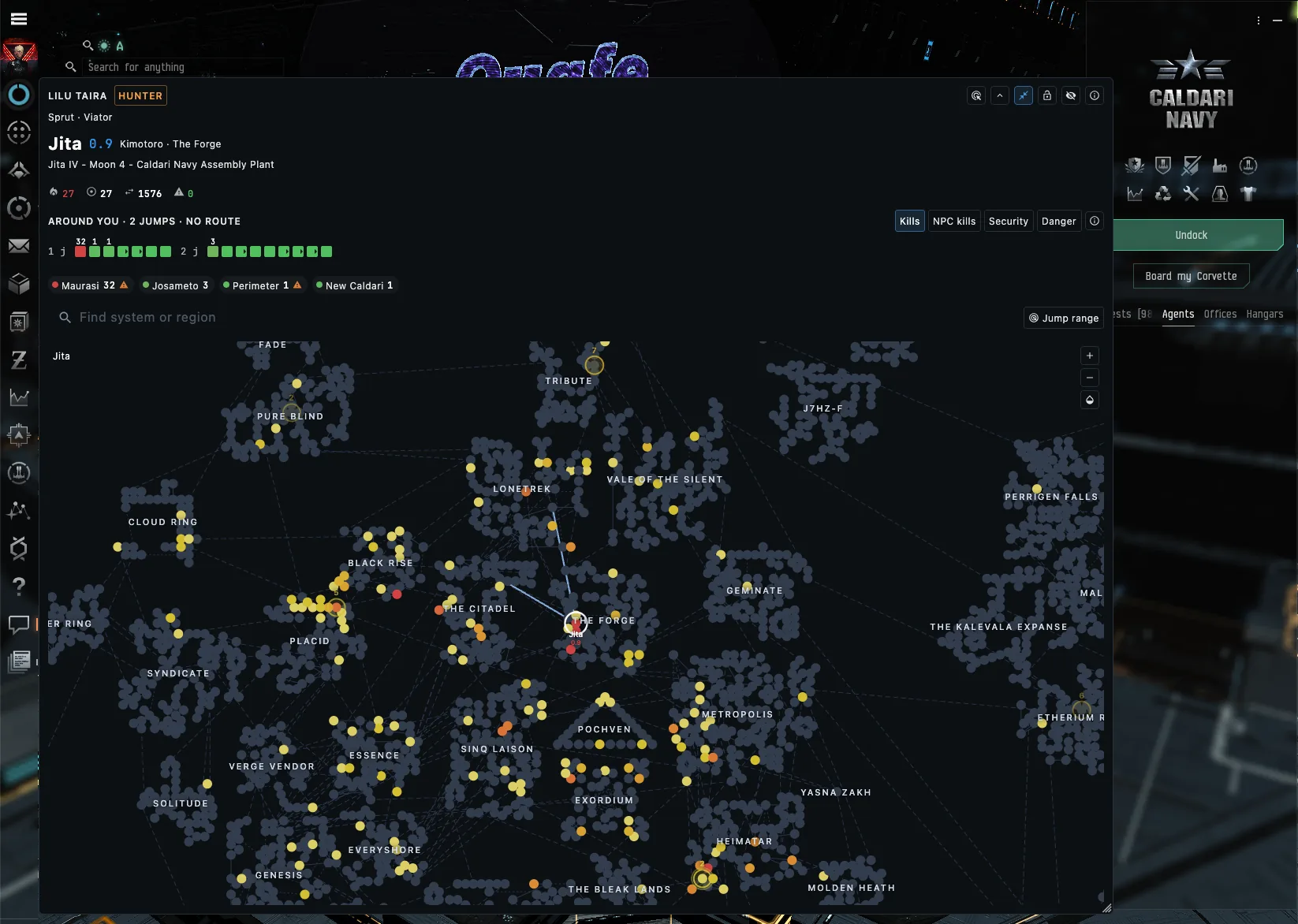
Kills on your route, danger nearby and the whole map, in a separate window on top of the EVE client. No alt-tab, no second screen, and the game itself is not touched.
A transparent window over the game for each pilot, showing what you would otherwise look up on a second screen. You decide what it shows, row by row.
The overlay is a separate window on top of the game. Nothing is injected into the client, and nothing reads its memory, your screen or your keys.
Grant these to a pilot to get their overlay:
You pick the areas when you log a pilot in and can add more later on the Access screen. How access works →
Header buttons — click-through, collapse to a single bar, expanded map, lock and hide. Hidden stays hidden until you show it again in Settings.
Click-through — your clicks go straight to the game. On Windows Ctrl+Shift+O switches it on and off.
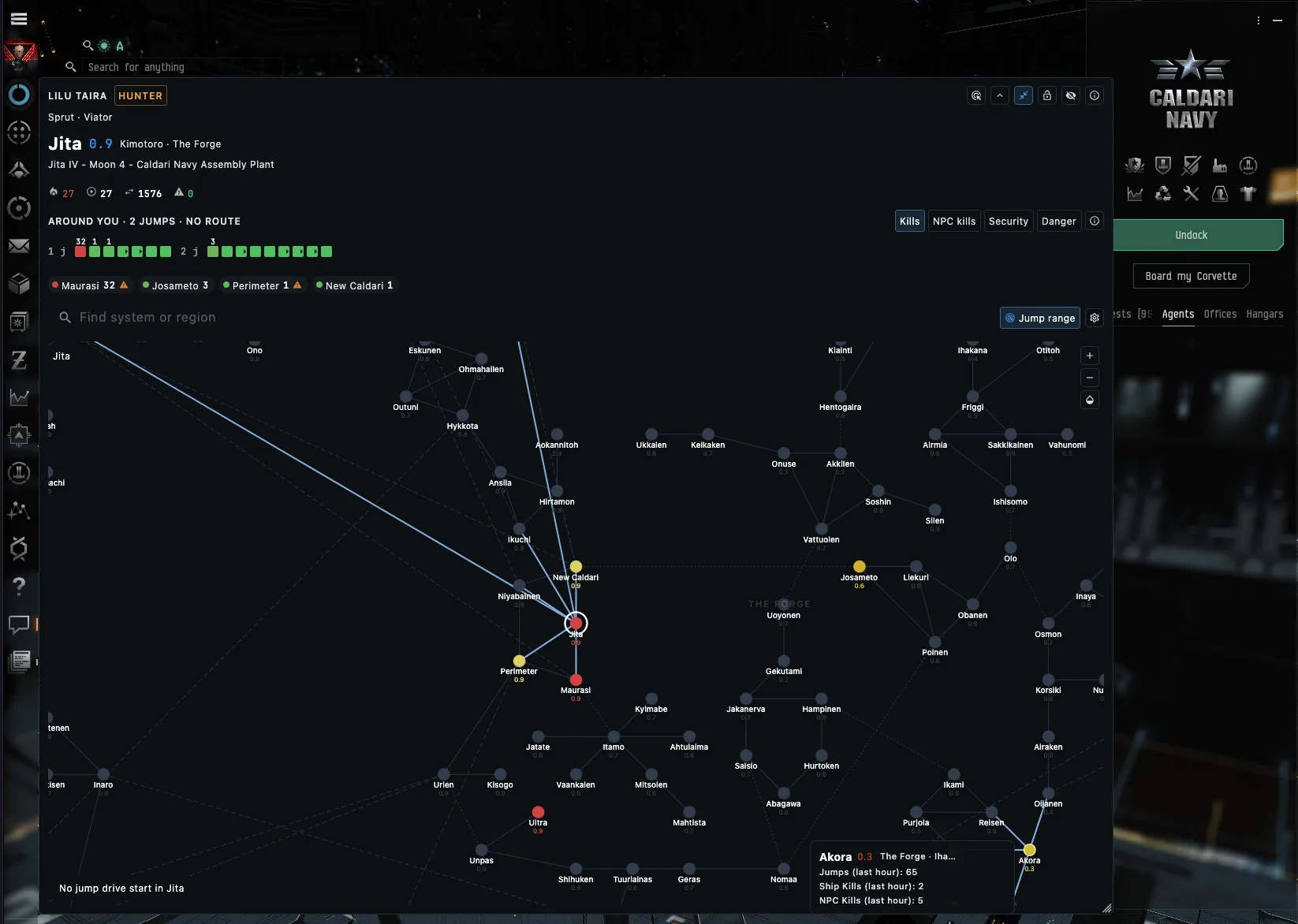
Routes — right-click a system on the map and pick Set destination: the route shows in the overlay and goes into the game. This needs click-through off. Shortest, Safest and Less secure rebuild it, and you clear it from the header.
Jump range — turn it on above the expanded map. It shows what is in range, one gate further and out of range from your pilot's system; the gear next to it changes the origin.
Multiboxing — one window per pilot. Turn on Hide when the client is covered, and each overlay shows only while its client is on screen.
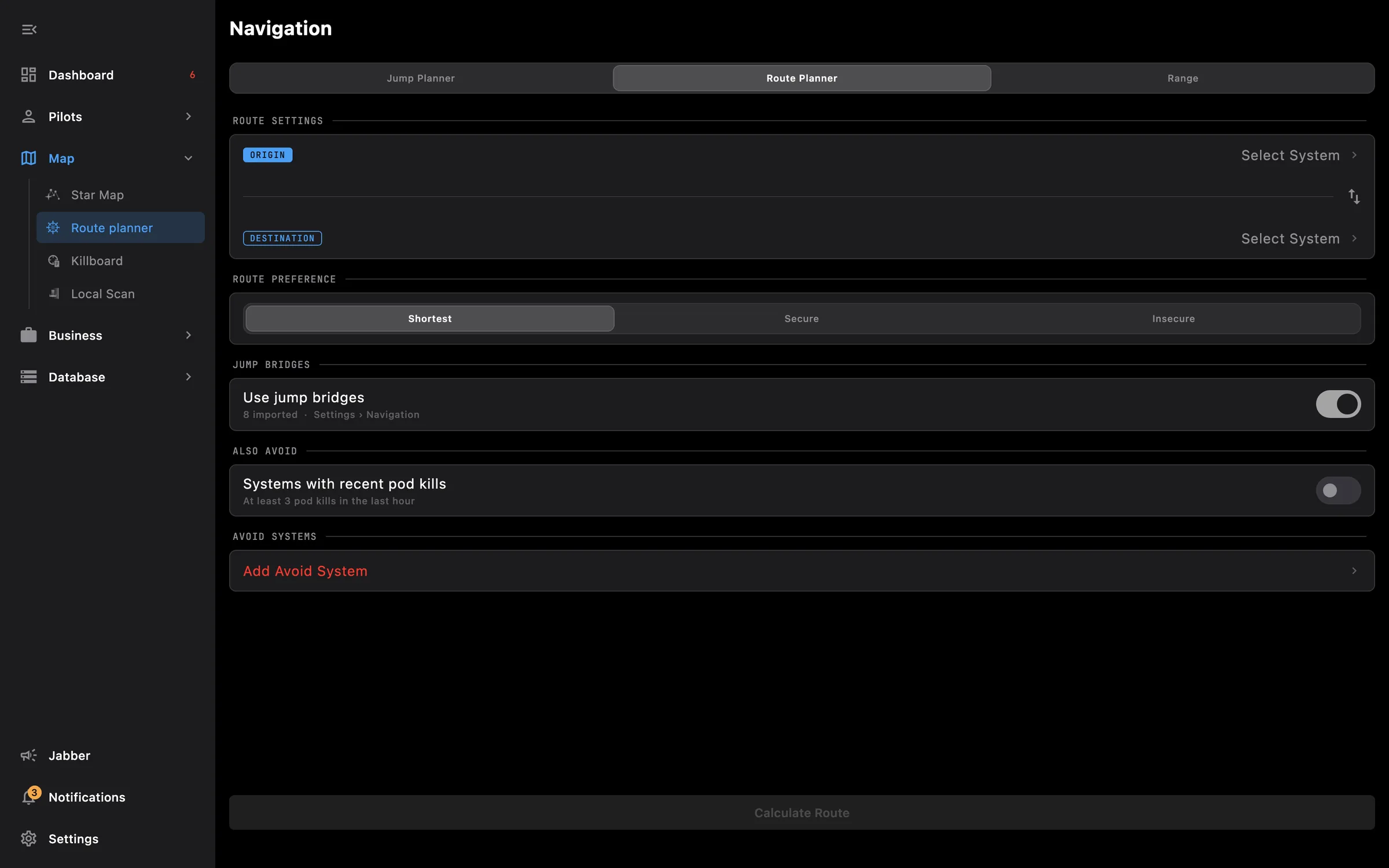
Gate routes with jump bridges, capital ranges, in-game waypoints
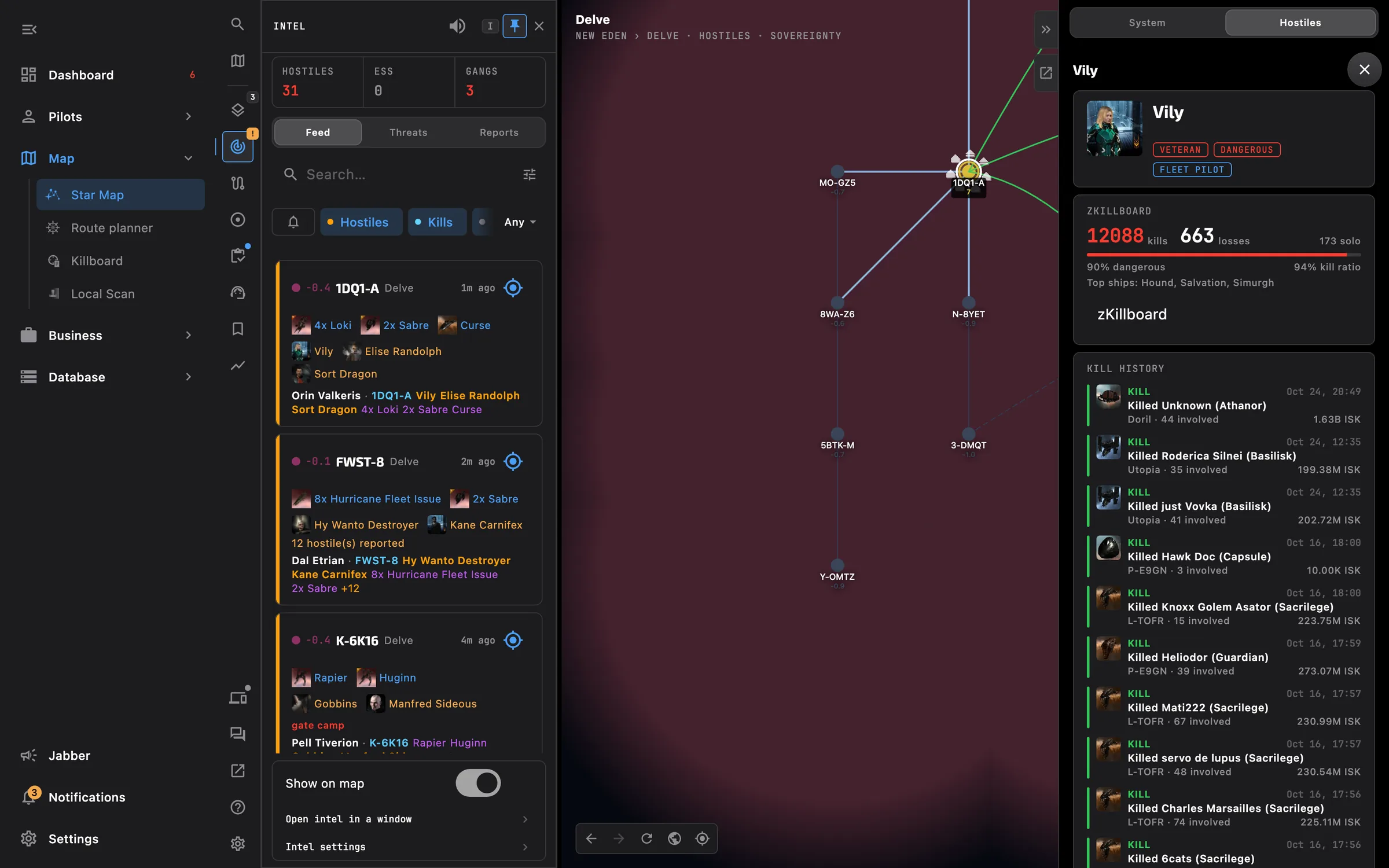
Your intel channels as reports and alerts, hostiles drawn on the map
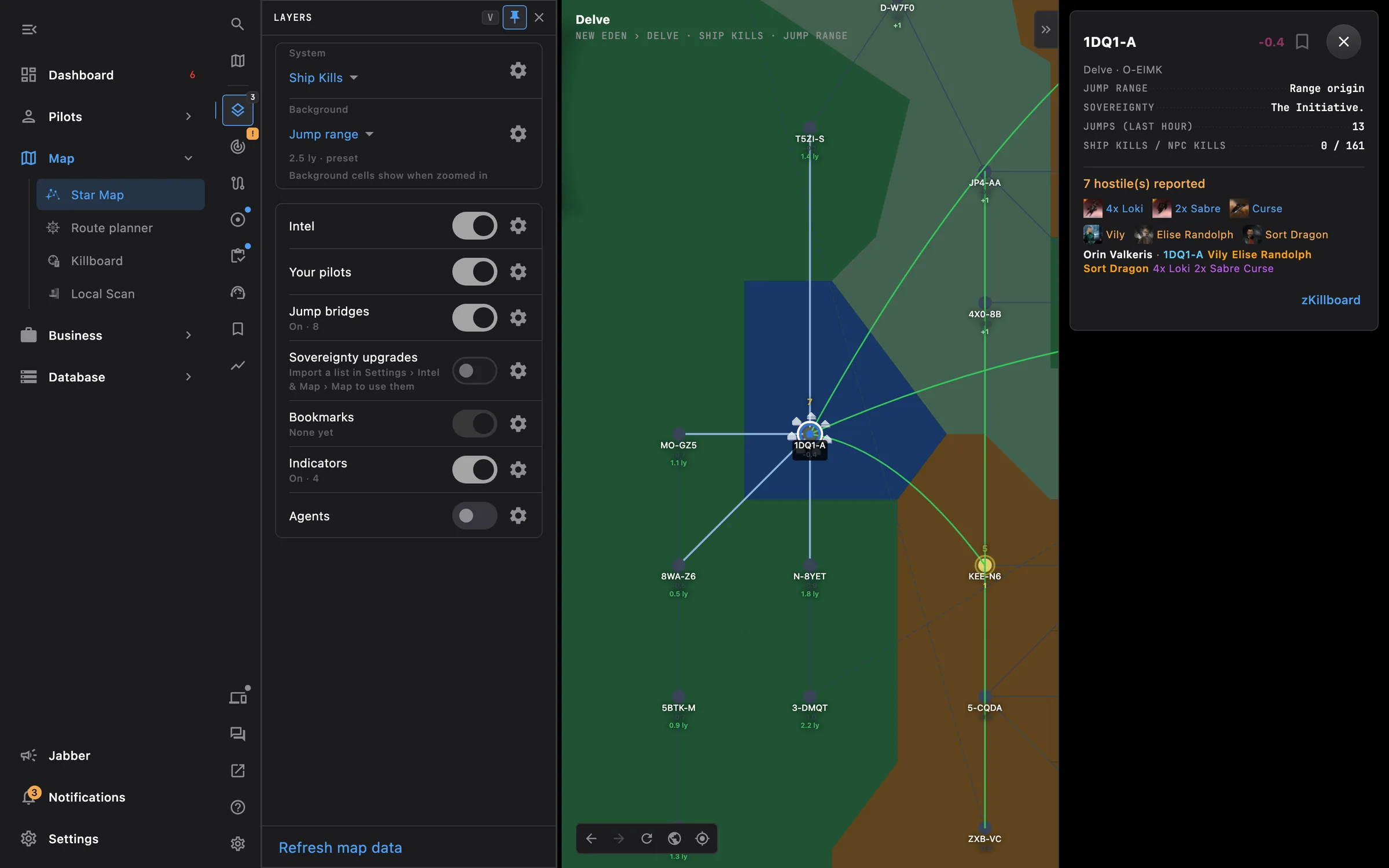
Sovereignty, activity, kills, jump ranges, bridges, assets and bookmarks on one map
Something missing? Recent changes are in the patch notes, and you can ask on Discord.